> ## Documentation Index
> Fetch the complete documentation index at: https://agentcontrol-simplify-quickstarts.mintlify.site/llms.txt
> Use this file to discover all available pages before exploring further.
# UI Quickstart
> Launch the Agent Control dashboard to manage controls and monitoring from your browser.
The Agent Control dashboard lets you manage [controls](/concepts/controls) and monitor agent activity — no code changes required.
## Open the Dashboard
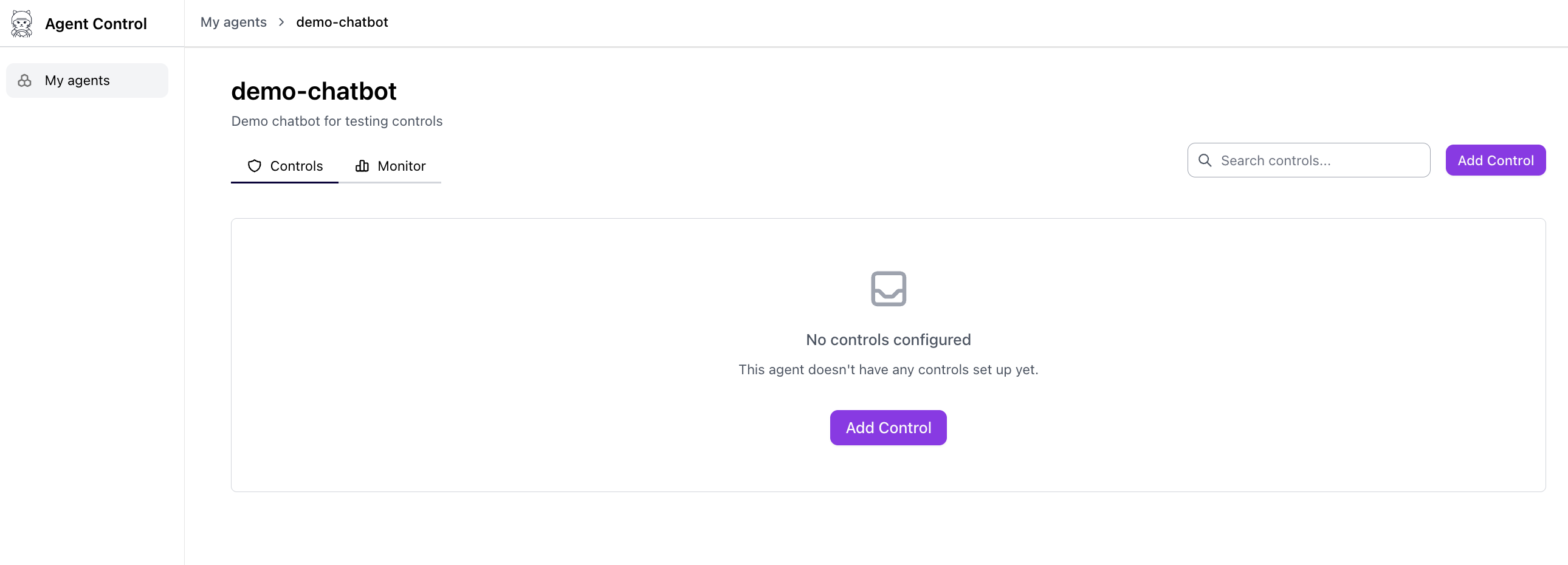
If you followed the [Quickstart](/core/quickstart), the dashboard is already running. Open [http://localhost:8000](http://localhost:8000) in your browser.
You should see an empty state — this is expected before any controls are created.
 If you cloned the `agent-control` repository and started the server with `make server-run`, you need to start the UI separately:
**Prerequisites:**
* **Node.js 20+** (CI uses 20; 18+ may work)
* **pnpm 9+** — install from [pnpm.io](https://pnpm.io/) or run `corepack enable && corepack prepare pnpm@latest --activate`
```bash theme={null}
cd ui
pnpm install
pnpm dev
```
The dashboard will be running at [http://localhost:4000](http://localhost:4000).
Keep the Agent Control server (`make server-run`) and the UI (`pnpm dev`) running in separate terminal windows. The dashboard communicates with the server at `http://localhost:8000` by default.
## Create Controls from the UI
You can create controls directly in the dashboard — no scripts or SDK code required.
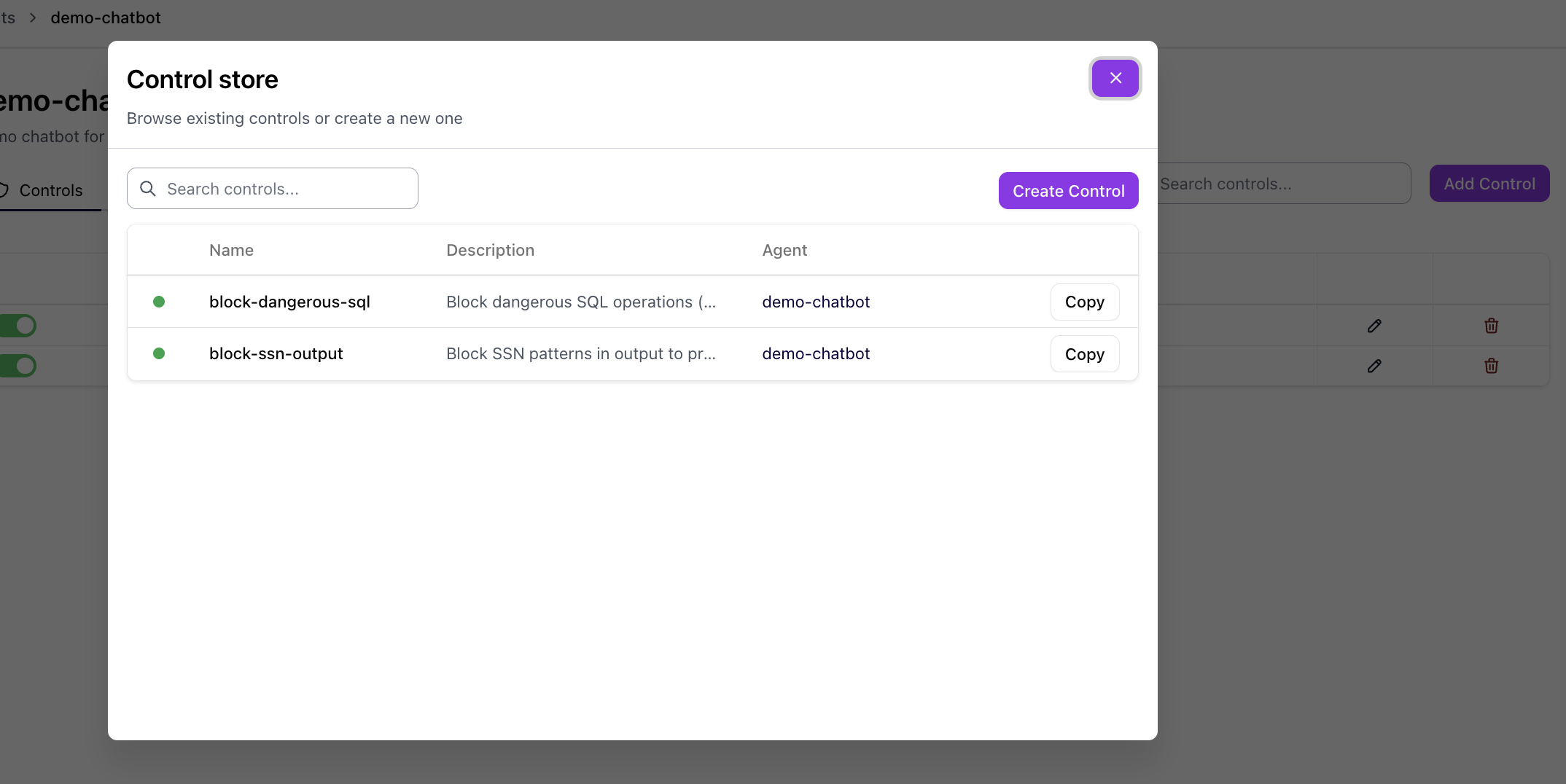
Click the **Add Control** button from the controls page to start creating a new control.
If you cloned the `agent-control` repository and started the server with `make server-run`, you need to start the UI separately:
**Prerequisites:**
* **Node.js 20+** (CI uses 20; 18+ may work)
* **pnpm 9+** — install from [pnpm.io](https://pnpm.io/) or run `corepack enable && corepack prepare pnpm@latest --activate`
```bash theme={null}
cd ui
pnpm install
pnpm dev
```
The dashboard will be running at [http://localhost:4000](http://localhost:4000).
Keep the Agent Control server (`make server-run`) and the UI (`pnpm dev`) running in separate terminal windows. The dashboard communicates with the server at `http://localhost:8000` by default.
## Create Controls from the UI
You can create controls directly in the dashboard — no scripts or SDK code required.
Click the **Add Control** button from the controls page to start creating a new control.
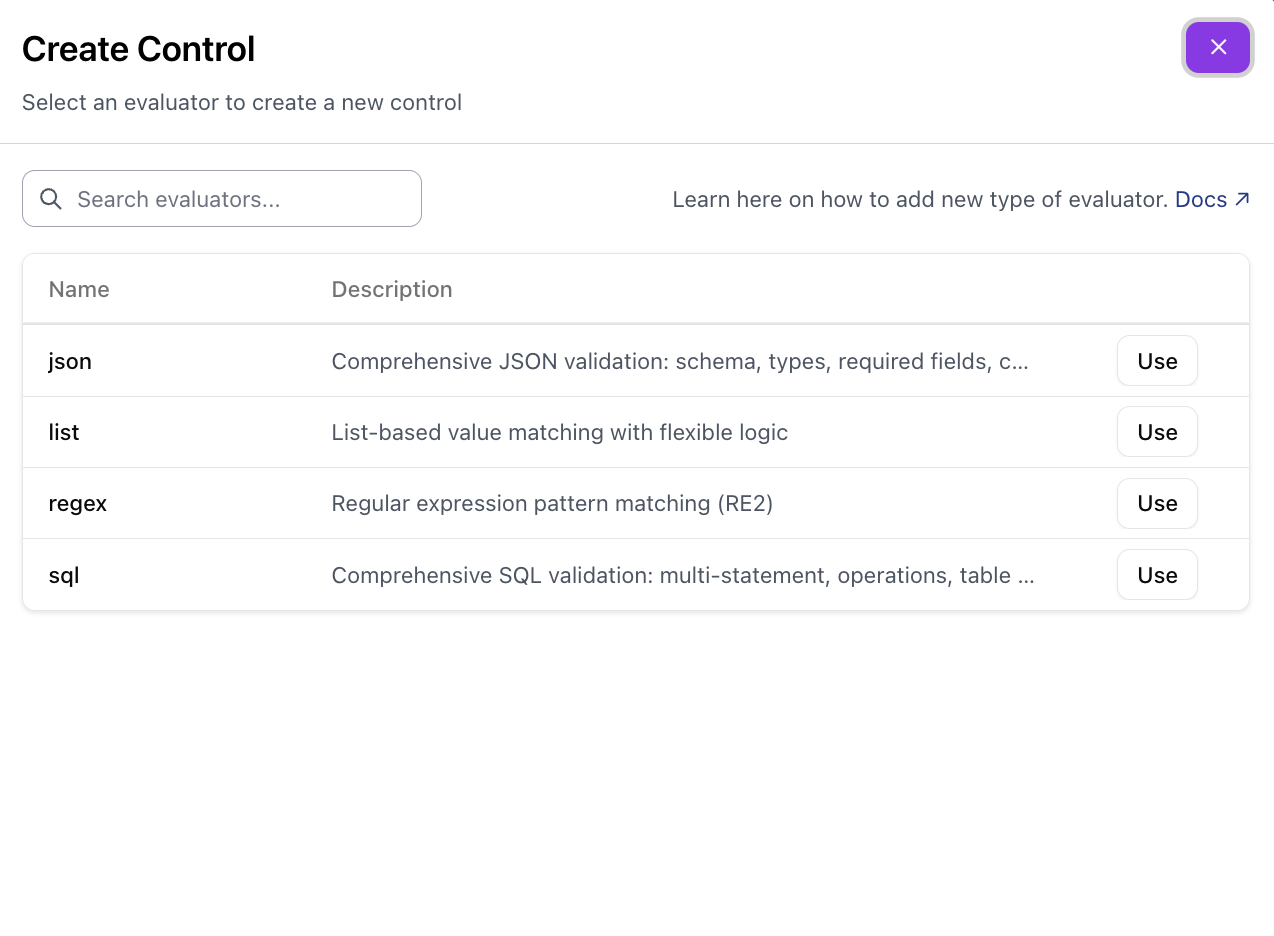
 Choose an [evaluator](/concepts/evaluators/overview) type for your control. Options include [Regex](/concepts/evaluators/built-in-evaluators#regex-evaluator), [List](/concepts/evaluators/built-in-evaluators#list-evaluator), [JSON](/concepts/evaluators/json), [SQL](/concepts/evaluators/sql), and [AI-powered](/concepts/evaluators/custom-evaluators) evaluators.
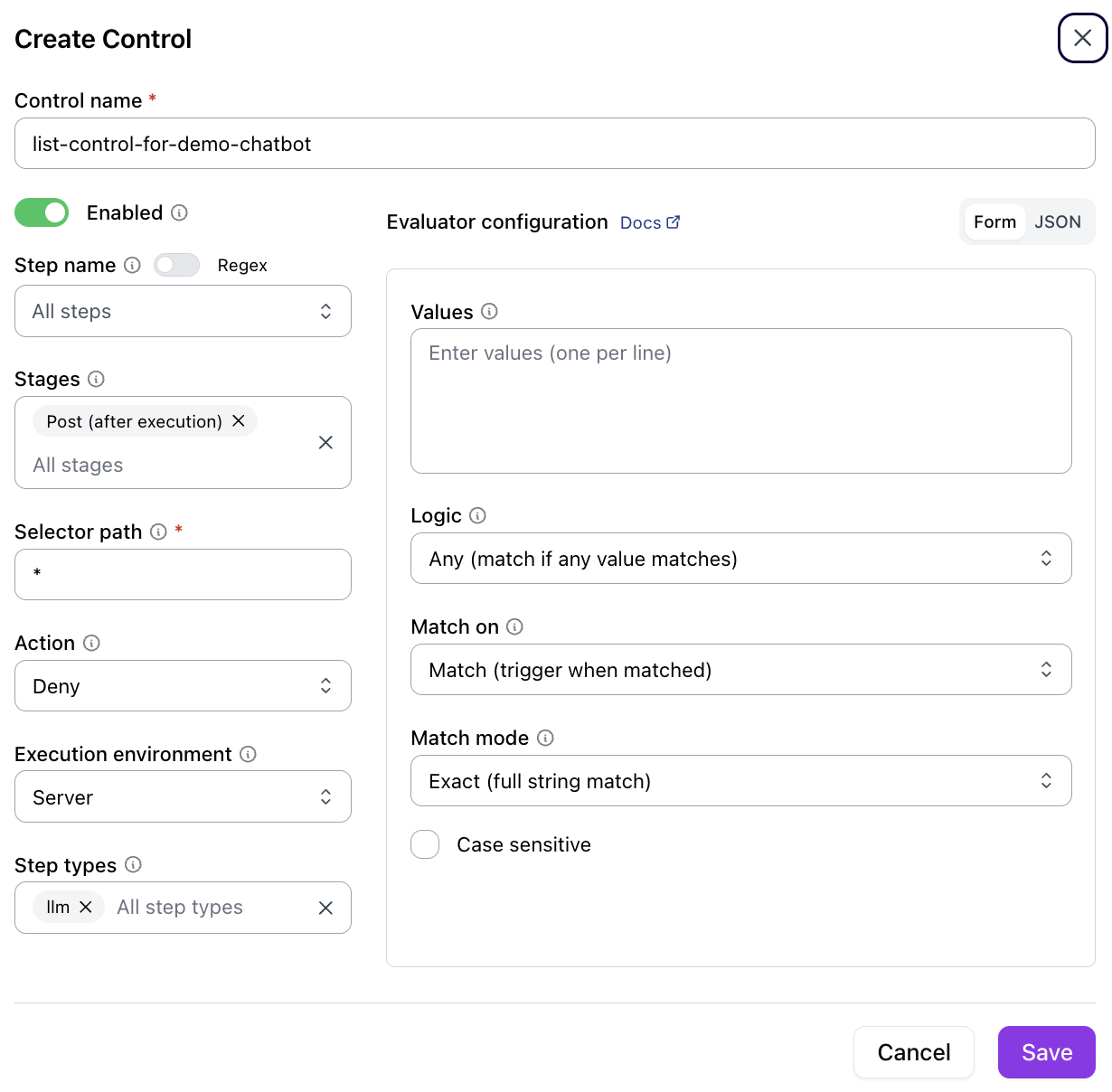
 Fill in the control details. See [Controls](/concepts/controls) for a full explanation of each field.
 | Field | Description |
| --------------------------- | ----------------------------------------------------------------------- |
| **Control name** | A unique identifier for the control |
| **Enabled** | Toggle the control on or off |
| **Stages** | When to evaluate — `Pre` (before execution) or `Post` (after execution) |
| **Selector path** | The data path to evaluate (for example, `*` for all fields) |
| **Action** | What happens on a match — `Deny` blocks the request |
| **Execution environment** | Where evaluation runs — `Server` or `Client` |
| **Evaluator configuration** | Type-specific settings (values, logic, match mode, case sensitivity) |
Click **Save** to register the control. It takes effect immediately — no redeployment needed.
## Monitoring
The monitoring dashboard shows real-time control activity across all agents:
| Field | Description |
| --------------------------- | ----------------------------------------------------------------------- |
| **Control name** | A unique identifier for the control |
| **Enabled** | Toggle the control on or off |
| **Stages** | When to evaluate — `Pre` (before execution) or `Post` (after execution) |
| **Selector path** | The data path to evaluate (for example, `*` for all fields) |
| **Action** | What happens on a match — `Deny` blocks the request |
| **Execution environment** | Where evaluation runs — `Server` or `Client` |
| **Evaluator configuration** | Type-specific settings (values, logic, match mode, case sensitivity) |
Click **Save** to register the control. It takes effect immediately — no redeployment needed.
## Monitoring
The monitoring dashboard shows real-time control activity across all agents:
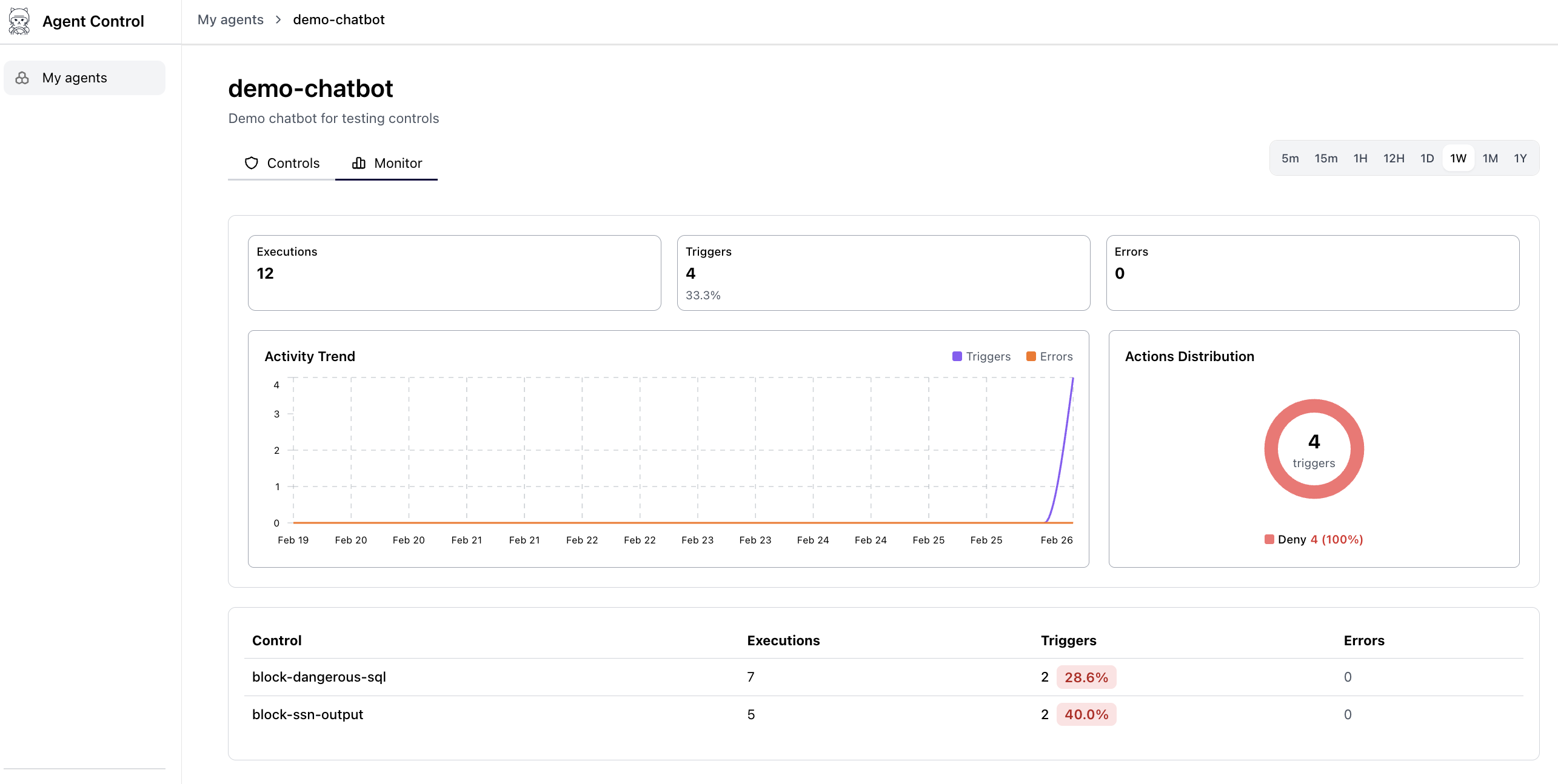 * **Total evaluations** — Requests processed per control
* **Block count** — Requests denied per control
* **Pass/block ratio** — Visual breakdown of allowed vs. blocked operations
* **Activity timeline** — Recent evaluations with timestamps
Use this view to verify controls are working, spot patterns that need tuning, and audit which controls triggered on which agent.
Monitoring data populates as agents process requests. Run the [Agent Control Demo](/examples/agent-control-demo) to generate sample data:
```bash theme={null}
uv run python examples/agent_control_demo/demo_agent.py
```
## Next Steps
Full end-to-end walkthrough with runnable scripts.
Learn how to define controls using the SDK or API.
Explore built-in and custom evaluator types.
Server configuration, authentication, and deployment options.
* **Total evaluations** — Requests processed per control
* **Block count** — Requests denied per control
* **Pass/block ratio** — Visual breakdown of allowed vs. blocked operations
* **Activity timeline** — Recent evaluations with timestamps
Use this view to verify controls are working, spot patterns that need tuning, and audit which controls triggered on which agent.
Monitoring data populates as agents process requests. Run the [Agent Control Demo](/examples/agent-control-demo) to generate sample data:
```bash theme={null}
uv run python examples/agent_control_demo/demo_agent.py
```
## Next Steps
Full end-to-end walkthrough with runnable scripts.
Learn how to define controls using the SDK or API.
Explore built-in and custom evaluator types.
Server configuration, authentication, and deployment options.